Imagine, You wake up Monday morning, open your Google Drive, and find 10 brand-new, professionally shot videos waiting for you.
You didn’t film anything.
You didn’t edit anything.
Even you didn’t click a button over the weekend.
This isn’t science fiction, Bro… I built this exact system last month, and it’s been generating cinematic AI videos while I sleep.
Today, I’m walking you through every single step so you can build your own viral AI video automation workflow, completely free.
By the end of this guide, you’ll have a system that:
- Generates creative video ideas automatically
- Writes perfect prompts for AI video generation
- Creates professional-looking videos
- Organizes everything in Google Sheets and Drive
- Runs on its own schedule without your involvement
Let’s get started.
What You’re Actually Building
Before we jump into settings and buttons, here’s what this automation does:
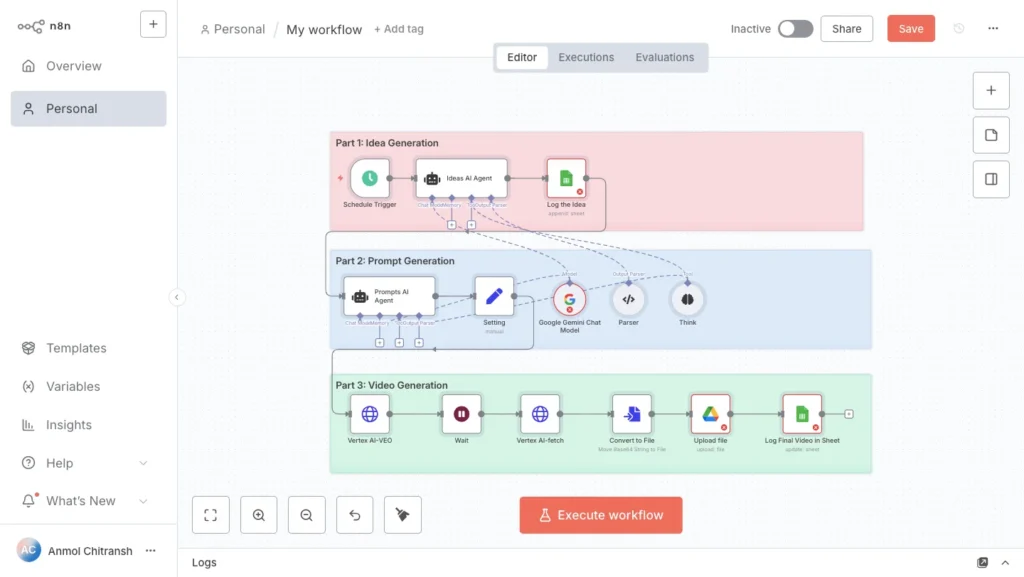
The automated workflow runs in three stages:
- Idea Generation: An AI agent brainstorms viral video concepts based on your chosen theme
- Video Production: Google Veo 3 generates cinematic footage from detailed prompts
- Organization: Everything gets saved to Google Drive and tracked in Google Sheets
The entire process runs on a schedule you set. Daily, weekly, or custom intervals, your choice. Once it’s live, you wake up to fresh videos without touching anything.
Phase 1: Setting Up n8n for Automation
n8n is the brain that connects everything. Think of it as a visual flowchart where each box performs one action, and you connect them to create an automated workflow.
Choosing Your n8n Setup
You have two options:
Option 1: n8n Cloud (Recommended for Beginners)
- Go to n8n.io and create a free account
- You get 5,000 workflow executions per month
- Everything runs in your browser
- No technical setup required
Option 2: Self-Hosted (For Advanced Users)
- Install n8n on your own computer or server
- Unlimited executions
- Requires technical knowledge
- Better control and customization
Start with n8n Cloud. You can always migrate to self-hosted later if you need more power.
Creating Your First Workflow
After logging into n8n, click New Workflow in the top right corner.
You’ll see a blank canvas with a plus (+) button in the center. This is your workflow builder.
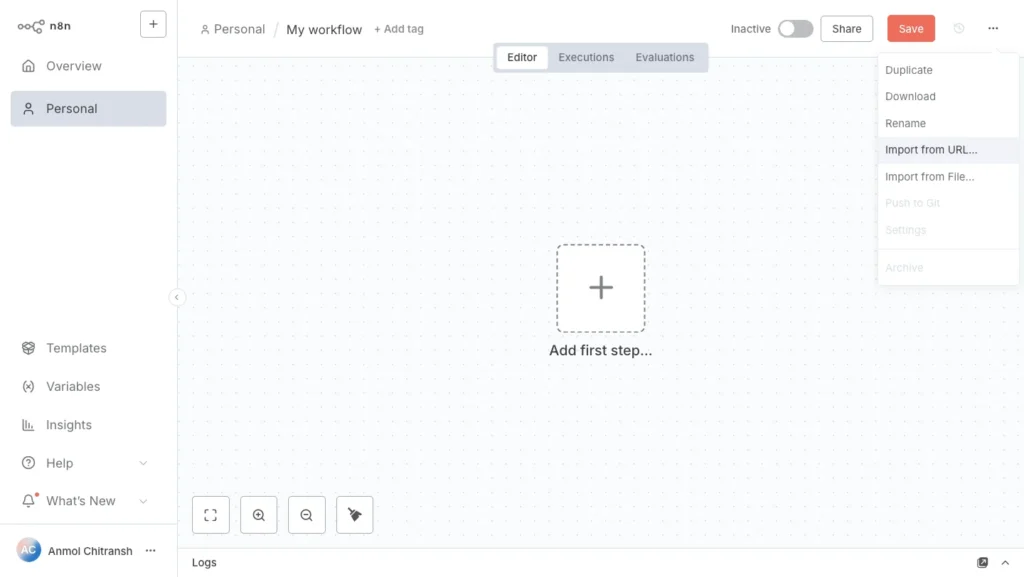
Every workflow needs a trigger, something that starts the automation. After the trigger, you add nodes (individual actions) that execute in sequence.
Phase 3: Building the Complete Automation
Now we build the actual system. I’ll walk you through every single node.
Part A: Setting Up Idea Generation
This section creates video concepts automatically.
Node 1: Schedule Trigger
Click the + button on your canvas.
Search for Schedule Trigger and select it.
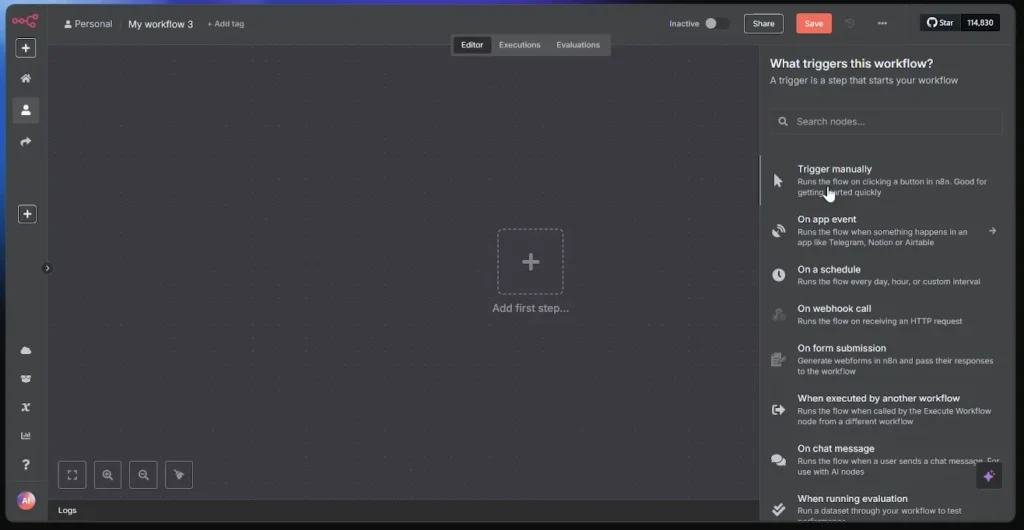
Configure these settings:
- Trigger Interval: Hours
- Hours Between Triggers: 24
This makes your workflow run once every 24 hours. You can adjust this to 12 hours, 48 hours, or whatever frequency you want.
Node 2: Ideas AI Agent
Click the + button after your Schedule Trigger.
Search for AI Agent and add it.
Configuration:
Name it “Ideas AI Agent” (just for your reference).
Model Selection:
- Choose Google Gemini from the dropdown
- Click Create New Credential
Getting Your Gemini API Key:
- Go to Google AI Studio
- Click Create API Key
- Copy the key
- Paste it into n8n
- Save the credential
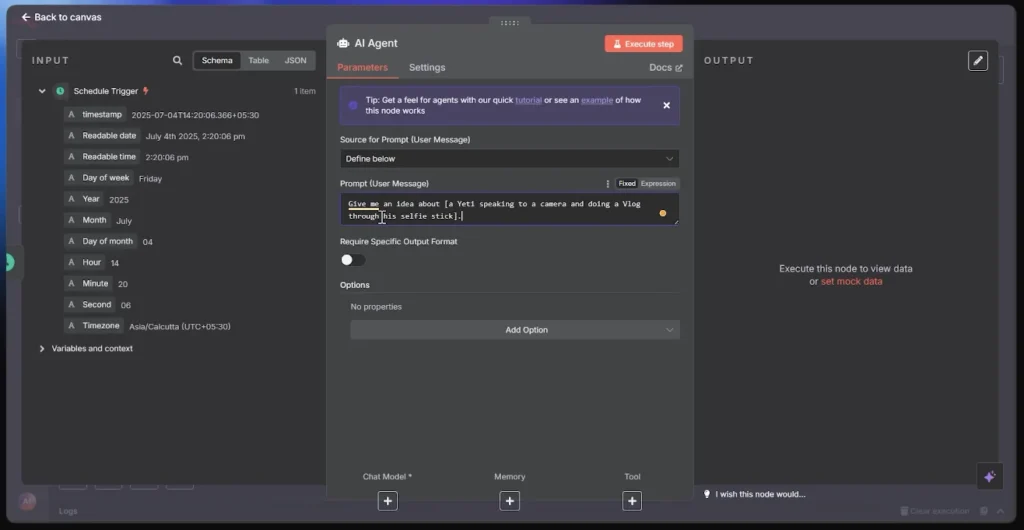
User Message (paste this exactly):
Give me an idea about a Yeti speaking to a camera and doing a vlog through his selfie stick.You can replace “Yeti vlogging” with any topic:
- “A time traveler documenting historical moments”
- “A chef showcasing Indian street food across different cities”
- “An alien conducting interviews with humans about Earth”
System Message (paste this exactly):
You are an AI designed to generate 1 immersive, realistic idea based on a user-provided topic. Your output must be formatted as a JSON array (single line) and follow all the rules below exactly.

RULES:
Only return 1 idea at a time.
The Idea must be under 13 words.
Describe an interesting and viral-worthy moment, action, or event related to the provided topic.
Can be as surreal as you want, doesn't have to be real-world.
Must involve a character.

The Caption must be:
Short, punchy, and viral-friendly.
Include one relevant emoji.
Include exactly 12 hashtags in this order: 4 topic-relevant hashtags, 4 all-time most popular hashtags, 4 currently trending hashtags.
All hashtags must be lowercase.

Set Status to "for production" (always).

The Environment must be under 20 words and match the action in the Idea exactly.
Clearly describe where the event is happening, key visuals or background details, main participants, and style of scene.

OUTPUT FORMAT (single-line JSON array):
[
  {
    "Caption": "Short viral title with emoji #hashtags",
    "Idea": "Short idea under 13 words",
    "Environment": "Brief vivid setting under 20 words matching the action",
    "Status": "for production"
  }
]
This instructs Gemini to output structured data in JSON format, making it easy for n8n to process.
Node 3: Think Tool
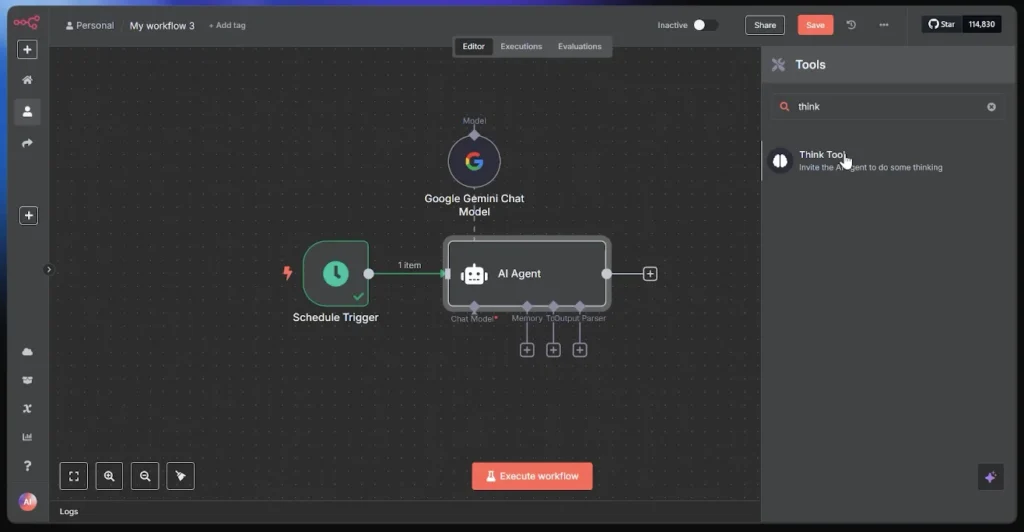
Click the + after your Ideas AI Agent.
Search for Think and add it.
Connect it to your Ideas AI Agent by selecting the agent in the dropdown.
The Think Tool lets the AI reason through complex prompts before responding. It’s like giving your AI time to consider different angles before committing to an answer.
No additional configuration needed here.
Node 4: Google Sheets for Tracking
Before adding this node in n8n, create the actual spreadsheet.
Creating Your Tracking Sheet:
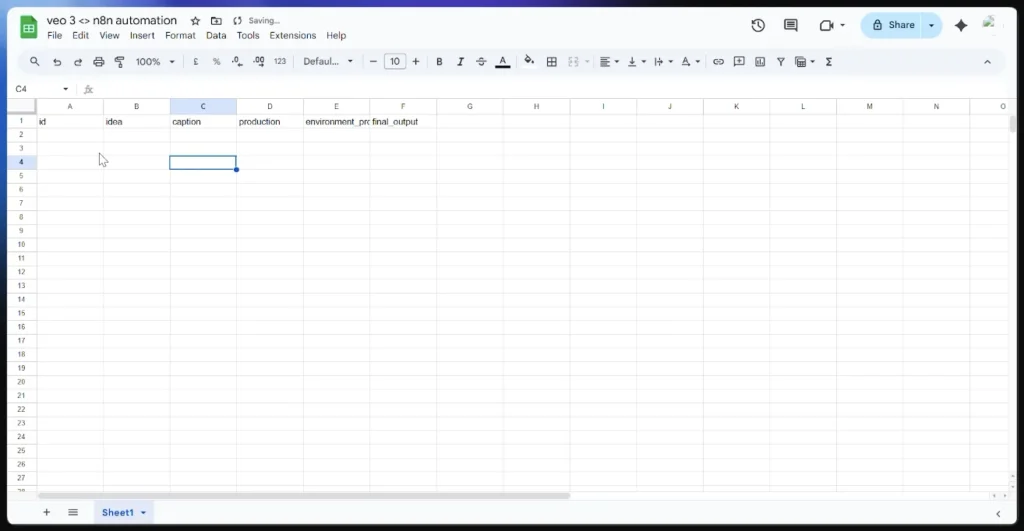
- Go to Google Sheets
- Click Blank to create a new spreadsheet
- Name it “Veo 3 Video Tracker”
- Add these column headers in Row 1:
- A1: Caption
- B1: Idea
- C1: Environment
- D1: Status
- E1: Prompt
- F1: Video Link
Save the sheet and keep it open in another tab.
Adding the Google Sheets Node:
Back in n8n, click the + after your Think Tool.
Configuration:
Search for Google Sheets and add it.
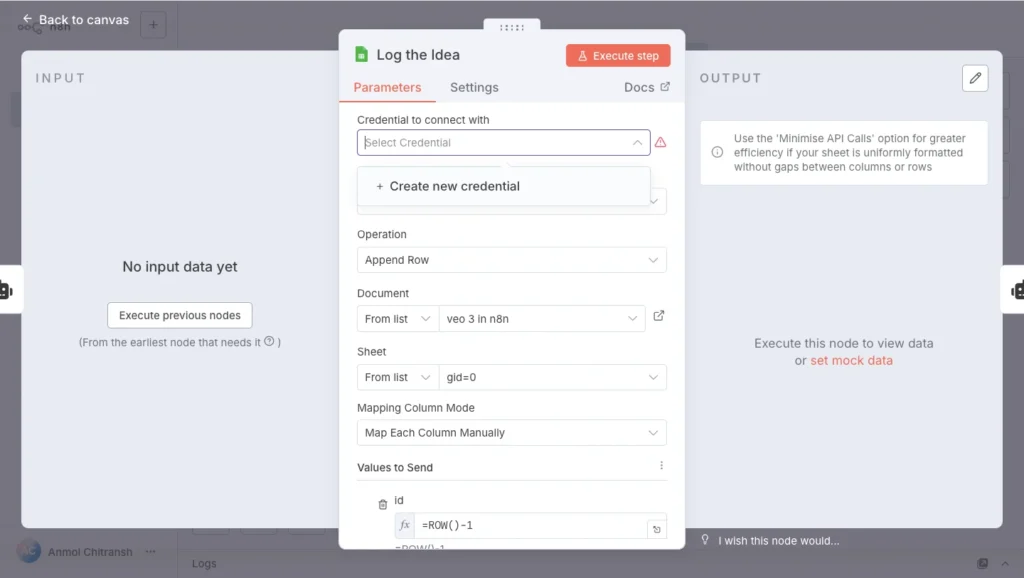
- Authentication: Click to add Google Sheets credentials (you’ll authenticate with your Google account)
- Resource: Sheet Row
- Operation: Append
- Document: Click and select “Veo 3 Video Tracker”
- Sheet: Select “Sheet1”
Column Mapping:
Now map the AI output to your spreadsheet columns:
- Caption: Click the field, then click Expression and enter
{{ $json.Caption }} - Idea:
{{ $json.Idea }} - Environment:
{{ $json.Environment }} - Status:
{{ $json.Status }} - Prompt: Leave empty for now
- Video Link: Leave empty for now
This saves every generated idea directly to your tracking sheet.
Test Your Progress:
Click Execute Workflow at the bottom of n8n.
Watch each node light up green as it executes. After a few seconds, check your Google Sheet. You should see a new row with an idea, caption, environment, and status.
If it worked, congratulations! The first part of your automation is live.
Part B: Creating Detailed Video Prompts
Ideas alone won’t generate great videos. Veo 3 needs detailed, cinematic prompts with specific technical elements.
Node 5: Prompts AI Agent
Click the + after your Google Sheets node.
Add another AI Agent node.
Name this one “Prompts AI Agent” (for your reference).
User Message (paste exactly):
Give me a Veo3 prompt for this idea: {{ $json.Idea }}

This is the environment: {{ $json.Environment }}
Those {{ }} brackets pull data from the previous node. It takes the idea and environment your first AI agent created and asks for a detailed prompt.
System Message (paste exactly):
You are an AI agent that writes hyper-realistic, cinematic video prompts for Google VEO3. Each prompt should describe a short, vivid selfie-style video clip featuring one unnamed character speaking or acting in a specific moment. The final video should look like found footage or documentary-style film—grounded, realistic, and immersive.

REQUIRED STRUCTURE:
[Scene paragraph prompt here]
Main character: [description of character]. They say: [insert one line of dialogue that fits the scene and mood]. They [describe a physical action or subtle camera movement, e.g. pans the camera, shifts position, glances around]. Time of Day: [day/night/dusk/etc.]. Lens: [describe lens]. Audio: (implied) [ambient sounds, e.g. wind, distant traffic, birdsong]. Background: [brief restatement of what is visible behind them].

RULES FOR PROMPT GENERATION:
Single paragraph only, 750-1500 characters. No line breaks or headings.
Only one human character. Never give them a name.
Include one spoken line of dialogue and describe how it's delivered.
Character must do something physical, even if subtle.
Use selfie-style framing. Always describe the lens and camera behavior.
Scene must feel real and cinematic.
Always include: Time of Day, Lens, Audio, and Background.

DO NOT:
Name the character.
Include more than one character.
Use special characters.
Describe subtitles or on-screen text.
Break the paragraph or use formatting.
Write vague or abstract scenes—always keep them grounded in physical detail.
Connect this agent to the same Google Gemini credentials you used earlier.
Node 6: Think Tool (Again)
Add another Think Tool after your Prompts AI Agent.
Connect it to the Prompts AI Agent.
This lets the second AI agent reason through the prompt creation before finalizing it.
Now you have two AI agents working in tandem: one generates ideas, the other transforms them into production-ready prompts.
Part C: Generating Videos with Veo 3
This is the most technical section, but I’ll guide you through every detail.
Node 7: Getting Your Google Cloud API Details
Go back to Vertex AI Studio where you tested Veo 3.
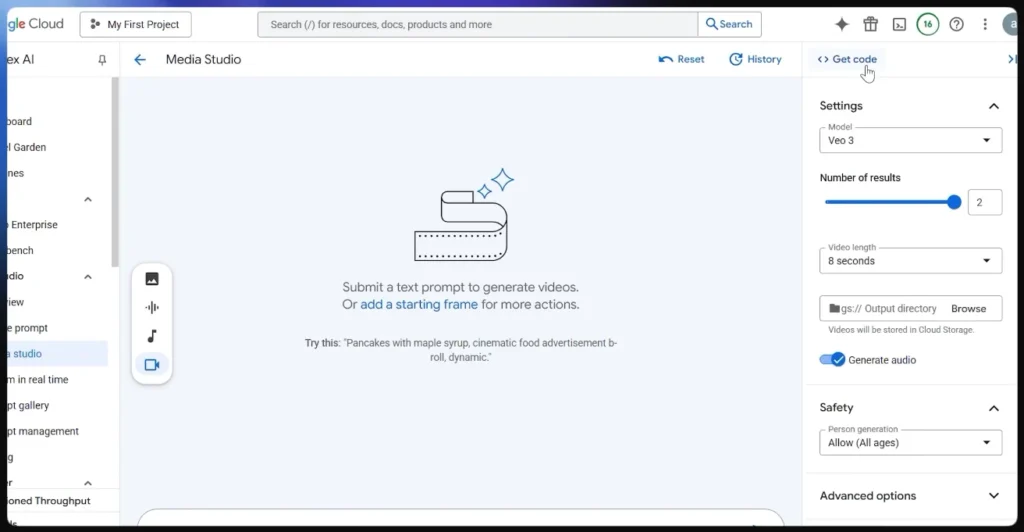
In the Generate Video interface, look for a button labeled Get Code. Click it.
A panel appears with critical information. Copy these values somewhere safe:
- Project ID: Something like
my-project-12345 - Location: Probably
us-central1 - Model:
veo-3
Getting Your Access Token:
Still in Google Cloud Console, look for the Activate Cloud Shell button (it looks like a terminal icon >_). Click it.
A terminal opens at the bottom of your screen. Copy and paste this command, then press Enter:
gcloud auth print-access-tokenYou’ll receive a long string of random characters. Copy this entire string, this is your access token.
Important note: Access tokens expire after 1 hour. For testing, this works fine. For production use, you’ll want to set up a service account with a permanent key (I’ll cover this in troubleshooting).
Node 8: HTTP Request to Start Video Generation
Back in n8n, click the + after your Prompts AI Agent Think Tool.
Search for HTTP Request and add it.
Configuration:
Method: POST
URL: You need to construct the URL using your specific project details. Replace YOUR_PROJECT_ID and YOUR_LOCATION with the actual values you copied earlier.
The URL format should be: https:// followed by YOUR_LOCATION, thenaiplatform.googleapis.com/v1/projects/, then YOUR_PROJECT_ID, then /locations/, then YOUR_LOCATION again, then /publishers/google/models/veo-3:generateContent
For example, if your project ID is “my-project-12345” and your location is “us-central1”, your complete URL would look like:
Just replace those example values with your actual project ID and location.
Authentication: Choose Generic Credential Type
- Click Add Credential
- Credential Type: Header Auth
- Name:
Authorization - Value:
Bearer YOUR_ACCESS_TOKEN(replace YOUR_ACCESS_TOKEN with the token you copied earlier) - Save the credential
Send Body: Toggle this ON
Body Content Type: JSON
JSON Body (paste exactly):
{
  "contents": [{
    "role": "user",
    "parts": [{"text": "{{ $json.output }}"}]
  }]
}
This sends your AI-generated prompt to Veo 3 and initiates video generation.
Node 9: Wait for Video Processing
Veo 3 needs time to generate your video. If you try to fetch it immediately, it won’t be ready.
Click the + after your HTTP Request.
Search for Wait and add it.
Configuration:
- Resume After: Amount of Time
- Wait: 60 seconds
This pauses your workflow for one minute while Veo processes your request.
Node 10: Fetch the Generated Video
After waiting, you need to retrieve the completed video.
Add another HTTP Request node after the Wait node.
Configuration:
Method: GET
URL: This time, you’re checking if your video is ready. Use the job ID from the previous HTTP Request. In the URL field, click on the expression editor and enter the following to pull the job ID automatically:
Double curly braces, then type: $node[“HTTP Request”].json[“name”], then close with double curly braces.
This automatically pulls the job ID from the first HTTP Request node.
Authentication: Use the same Bearer token credential you created earlier.
When this executes, Veo returns your video as a Base64-encoded string (a text representation of the video file).
This automatically pulls the job ID from the first HTTP Request node.
Node 11: Decode Base64 to MP4
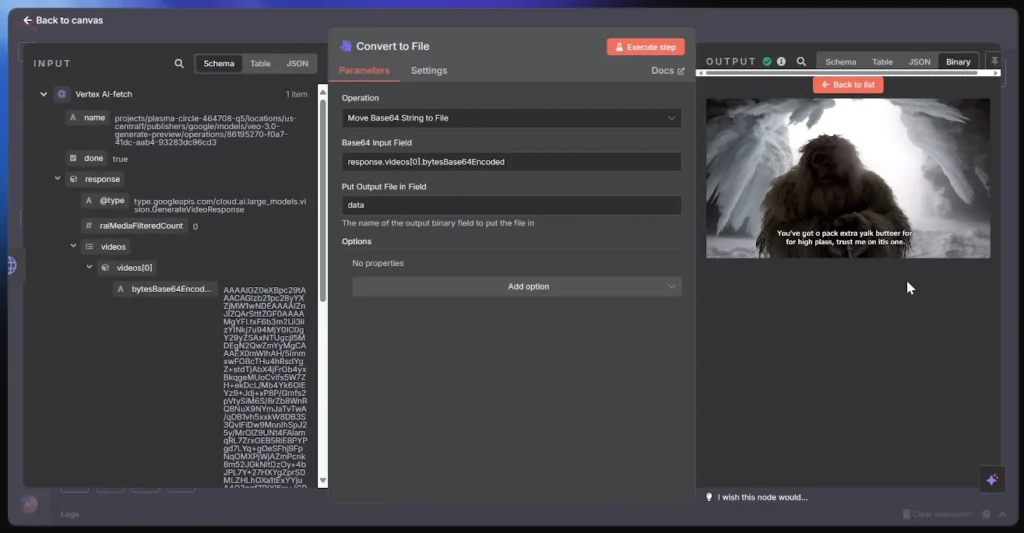
You need to convert that Base64 string back into a real video file.
Click the + after your second HTTP Request.
Search for Code and add it.
Select JavaScript as the language.
Paste this code exactly:
const base64Data = items[0].json.content[0].videoData;
const binaryData = Buffer.from(base64Data, 'base64');

return [{
  json: {
    fileName: `${items[0].json.Idea}.mp4`
  },
  binary: {
    data: {
      data: binaryData.toString('base64'),
      mimeType: 'video/mp4',
      fileName: `${items[0].json.Idea}.mp4`
    }
  }
}];
This converts the encoded text back into a downloadable MP4 file.
Part D: Storage and Organization
Your video is generated. Now you need to save it and track it.
Node 12: Upload to Google Drive
Click the + after your Code node.
Search for Google Drive and add it.
Configuration:
- Authentication: Add Google Drive credentials (authenticate with your Google account)
- Resource: File
- Operation: Upload
- File Name: In the expression field, type double curly braces, then $json.Idea, then .mp4, and close with double curly braces. This names the file using your video idea.
- Parent Folder: Click to select or create a folder called “AI Generated Videos”
- Binary Property: data
This uploads your video to Google Drive and generates a shareable link.
Node 13: Update Your Tracking Sheet with Video Link
You need to add the video link back to your original Google Sheet.
Add another Google Sheets node after Google Drive.
Configuration:
- Operation: Update
- Document: Select “Veo 3 Video Tracker”
- Sheet: Sheet1
- Column to Match On: Idea
- Value to Match: Click the expression editor and enter the reference to pull the Idea field from your data
- Prompt: Click the expression editor and reference the output from your Prompts AI Agent node
- Video Link: Click the expression editor and reference the webViewLink from your Google Drive node
This finds the row with the matching idea and updates it with the prompt and video link.
Your Complete Workflow Overview
Let’s visualize what you just built:
| Step | Node | What It Does |
|---|---|---|
| 1 | Schedule Trigger | Fires once per day or on your custom schedule |
| 2 | Ideas AI Agent | Generates a viral video concept |
| 3 | Think Tool | Lets AI reason through the idea |
| 4 | Google Sheets | Saves the idea to your tracking sheet |
| 5 | Prompts AI Agent | Creates a detailed Veo 3 prompt |
| 6 | Think Tool | Lets AI refine the prompt |
| 7 | HTTP Request | Sends prompt to Veo 3 |
| 8 | Wait | Gives Veo 60 seconds to generate |
| 9 | HTTP Request | Fetches the completed video |
| 10 | Code | Converts Base64 to MP4 |
| 11 | Google Drive | Uploads video and gets shareable link |
| 12 | Google Sheets | Updates tracking sheet with video link |
Every 24 hours (or whatever interval you set), this entire process runs automatically without you touching anything.
Adjusting Your Schedule
Change the Schedule Trigger settings:
- Every 12 hours: For 2 videos daily
- Every 3 days: For weekly content batches
- Specific times: Set exact days and hours for scheduled generation
Common Issues and Quick Fixes
“Access token expired” error: Your token lasted one hour. Generate a new one from Cloud Shell and update the HTTP Request nodes.
“Video generation failed” error: Veo rejected your prompt. Check for prohibited content or overly complex descriptions. Simplify your prompt.
Google Sheets isn’t updating: Make sure your sheet exists before running the workflow. Check that column names match exactly (case-sensitive).
Video won’t play after download: The Base64 decoding failed. Double-check the Code node JavaScript for typos.
The Shortcut: Import the Ready-Made Workflow
Here’s the thing: everything I just showed you works perfectly, but I know some of you are thinking “that’s a lot of steps.” I get it.
That’s why I’ve created a ready-to-import workflow file that includes the entire automation pre-built. You can literally skip all the node configuration and have this running in under 10 minutes.
How to use the pre-built workflow:
- Download the n8n JSON workflow file
- Open your n8n dashboard
- Click the three dots menu (⋯) in the top right
- Select Import from File
- Choose the downloaded JSON file
- Click Import
The entire workflow appears on your canvas with all nodes connected correctly. You just need to:
- Add your Google Gemini API key
- Add your Google Sheets credentials
- Add your Google Drive credentials
- Update the HTTP Request nodes with your Google Cloud Project ID, Location, and Access Token
- Select your tracking spreadsheet
That’s it.
Test it once by clicking Execute Workflow, verify it works, then activate the Schedule Trigger. Your automation is live.
This is especially helpful if you’re new to n8n and feeling overwhelmed by all the configuration options.
What You’ve Accomplished
You just built a production-level automation system that companies charge thousands of rupees to create.
You have a workflow that generates creative ideas, writes professional prompts, creates cinematic videos, and organizes everything automatically.
The system runs on its own schedule. You could leave it running for a month and come back to 30 professionally shot videos waiting in your Drive, all tracked in a clean spreadsheet.
This same pattern works for any AI automation. Replace Veo with image generators, swap Gemini for different AI models, connect to social media APIs for automatic posting.
You’ve learned the fundamental structure of AI automation.
You may also like:
- 11 ChatGPT Atlas Use Cases That’ll Change How You Work
- 5 Perplexity Comet AI Agents You’ll Wish You Knew Sooner