
I know that, research overload is real.
Fifteen papers scattered across your desk, multiple browser tabs fighting for attention, and deadlines breathing down your neck, this scenario drains productivity and mental energy faster than anything else.
NotebookLM solves this exact problem, but not in the way most AI tools approach it.
Unlike ChatGPT or other general-purpose AI assistants that pull information from their training data, NotebookLM works exclusively with documents you provide.
Think of it as hiring a research assistant who reads only your specific materials, remembers every detail, and discusses them intelligently without mixing in random internet knowledge.
Google developed NotebookLM as an experimental project that has matured into a practical research tool.
The core concept is simple, you upload documents, and the AI becomes an expert on that specific content.
Academic papers, business reports, website links, YouTube videos, personal notes, all of these can combine into a single, searchable knowledge base.
- What is NotebookLM?
- What Sets NotebookLM Apart?
- The Real Problem NotebookLM Solves
- How to Set Up Your First Notebook
- Core Features That Change Everything
- NotebookLM vs Other AI Tools
- Combining Tools for Maximum Effect
- Getting the Most Out of NotebookLM
- Pricing and Access Options
- Final Thoughts: Making NotebookLM Work for You
What is NotebookLM?
In layman words, NotebookLM is a Google-built AI tool that helps you make sense of your own research. Upload documents, notes, or links and it summarizes, compares, and explains them in plain language.
What Sets NotebookLM Apart?
| Feature | NotebookLM | ChatGPT / Gemini | Traditional PDF Tools |
|---|---|---|---|
| Source Control | Only uses your uploaded documents | Uses general training data | Usually single-document focus |
| Citations | Every answer links to specific source sections | No source citations | Limited citation capability |
| Multi-Document Analysis | Connects insights across 50+ sources | Limited file analysis | Typically one file at a time |
| Audio Generation | Creates podcast-style discussions | Text-to-speech only | No audio features |
| Grounding | 100% grounded in your sources | May hallucinate information | Limited to document content |
The citation system makes all the difference. Every answer includes numbered references pointing to exact sections in your source material.
No hallucinations, no outdated information, no vague claims that can’t be verified.
The Real Problem NotebookLM Solves
Traditional research workflows look something like this:
Step 1: Read the first document, highlight important sections
Step 2: Open a notes document, copy-paste relevant quotes
Step 3: Read the second document, take more notes
Step 4: Realize you forgot something from the first document
Step 5: Go back, search through highlighted sections
Step 6: Lose track of which quote came from which source
Step 7: Give up on proper citations because manual tracking is exhausting
NotebookLM eliminates this frustrating cycle.
Upload all your sources once, then interact with them through conversation.
The AI handles the heavy lifting, reading, connecting ideas, tracking sources, while you focus on understanding and applying the information.
The tool solves these three specific challenges:
- Challenge 1: Information Synthesis
- Challenge 2: Time Management
- Challenge 3: Knowledge Retention
How to Set Up Your First Notebook
Getting started takes less than five minutes.
Here’s the complete process:
Step 1: Access NotebookLM
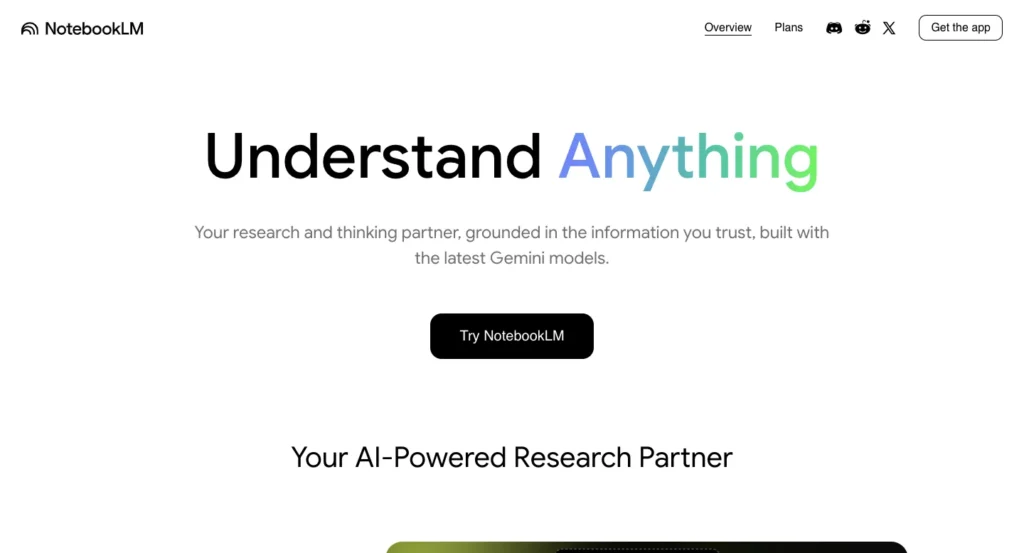
- Open your web browser
- Navigate to notebooklm.google.com
- Click the “Try NotebookLM” button
- Use your Google account credentials
- Accept the terms of service
No payment information needed. No complex configuration. Just sign in and start.
Step 2: Create Your First Notebook
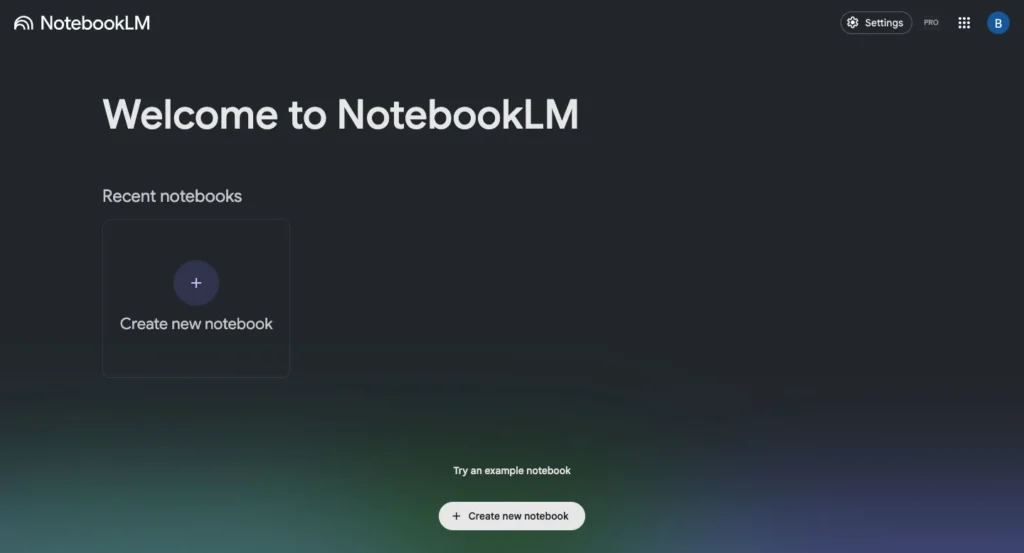
- Click the “Create” or “New Notebook” button
- Enter a descriptive name (e.g., “Climate Research Project” or “Q4 Market Analysis”)
- Click “Create”
The notebook opens with a clean interface showing three main sections:
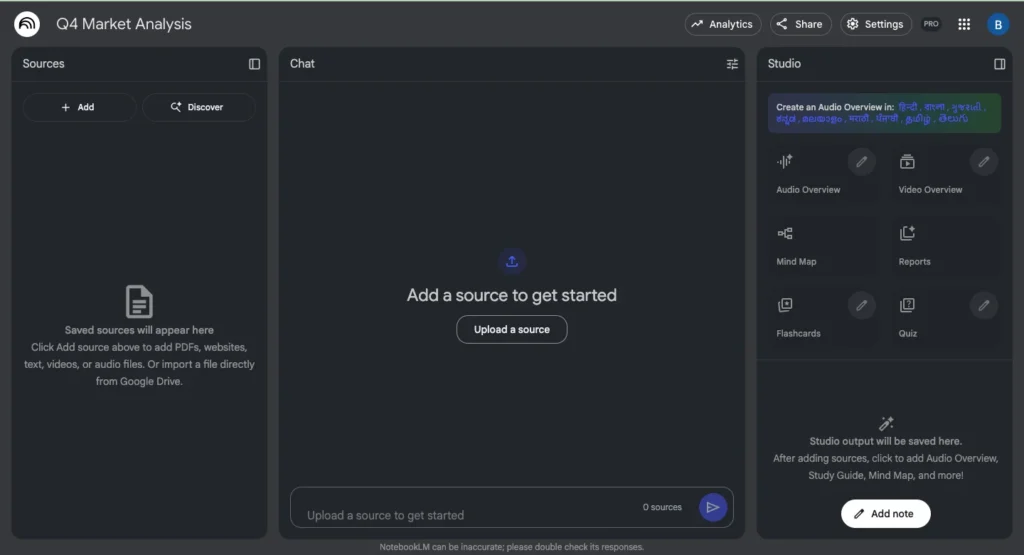
- Left sidebar: Your uploaded sources
- Center panel: Chat interface for questions
- Right panel: Notebook Guide with auto-generated content
Step 3: Upload Your Sources
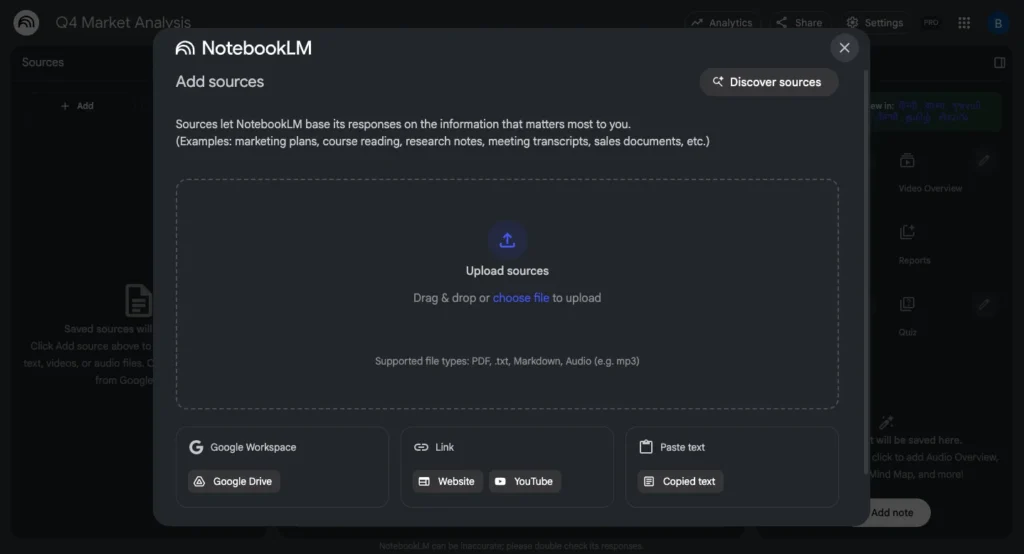
Click the “Add Source” button to see your upload options:
| Source Type | How to Add | Best For |
|---|---|---|
| PDF Files | Click “Upload” and select from computer | Research papers, reports, ebooks |
| Google Docs | Click “Google Drive” and select document | Collaborative documents, drafts |
| Google Slides | Click “Google Drive” and select presentation | Lecture materials, presentations |
| Websites | Paste URL directly | Articles, blog posts, documentation |
| YouTube Videos | Paste video URL | Lectures, interviews, tutorials |
| Text Files | Click “Upload” and select .txt or .md files | Notes, transcripts, code documentation |
| Audio Files | Click “Upload” and select audio file | Recorded lectures, interviews, podcasts |
Step 4: Wait for Processing
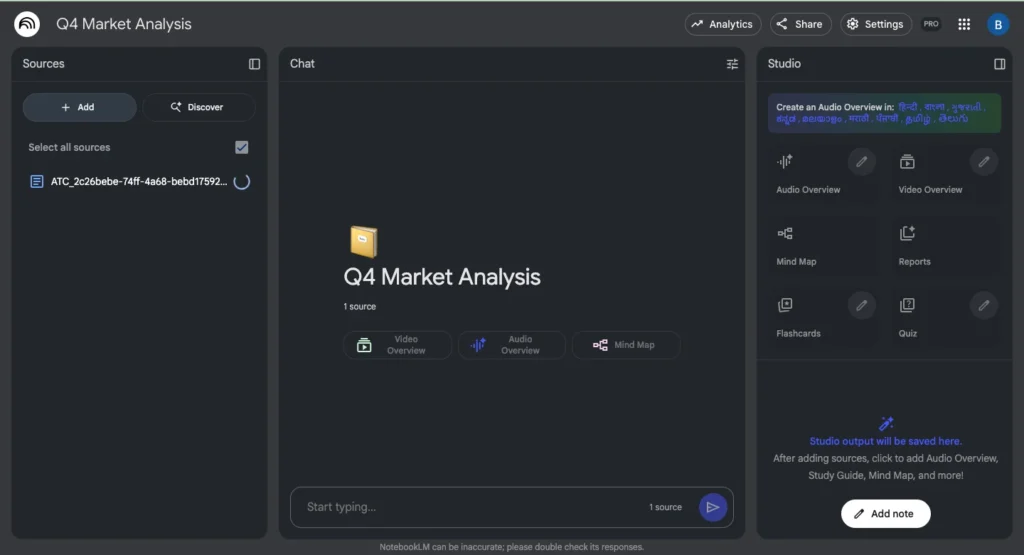
After uploading, NotebookLM analyzes your document:
- Small files (under 10 pages): 5-15 seconds
- Medium files (10-50 pages): 30-60 seconds
- Large files (50+ pages): 1-3 minutes
- Video transcripts: 2-5 minutes
You’ll see a thumbnail and title appear in your sources list when processing completes.
Step 5: Start Interacting
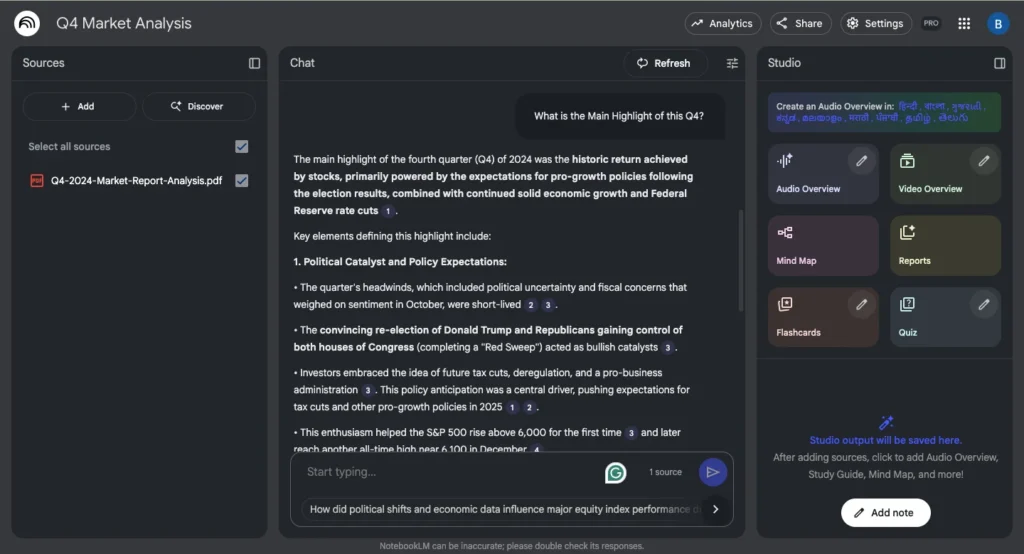
The Notebook Guide automatically generates:
- A summary of all uploaded content
- Suggested questions based on your sources
- Options for creating study guides, FAQs, and timelines
Click any suggested question to see how NotebookLM responds, or type your own question in the chat box.
Important Limits to Remember
| Resource | Free Version | Plus Version |
|---|---|---|
| Notebooks per user | 100 | 500 |
| Sources per notebook | 50 | 300 |
| Words per source | 500,000 | 500,000 |
| File size limit | 200 MB | 200 MB |
| Daily queries per notebook | 50 | 500 |
| Audio overviews per notebook/day | 3 | 20 |
Core Features That Change Everything
NotebookLM offers several powerful capabilities that transform how you work with information.
Feature 1: Document Analysis with Citations
The most fundamental capability is asking questions and receiving grounded answers.
How It Works:
- Type your question in the chat box
- NotebookLM scans all uploaded sources
- AI generates a synthesized answer
- Every claim includes numbered citations
- Click any citation to jump to that exact section in the source
Example Questions That Work Well:
"What are the main arguments in these papers?"
"Summarize the key findings about [specific topic]"
"How do these sources define [important term]?"
"What methodology did the researchers use?"
"Where do these sources disagree?"
The citations make verification effortless. When you see “[1][3][5]” after a statement, click those numbers to confirm the AI interpreted the sources correctly.
Feature 2: Audio Overviews (The Podcast Feature)
This feature generates surprisingly natural conversations between two AI hosts discussing your uploaded content.
How to Generate an Audio Overview:
- Upload all relevant sources to your notebook
- Locate the “Notebook Guide” panel on the right
- Scroll to the “Audio Overview” section
- Click “Generate”
- Wait 2-5 minutes for processing
- Click “Play” to listen
Customizing Your Audio Overview:
Before generating, click “Customize” to add specific instructions:
| Customization Type | Example Instruction |
|---|---|
| Audience Level | “Explain this for someone with no background in economics” |
| Focus Area | “Focus primarily on the practical applications mentioned” |
| Tone | “Keep the discussion serious and academic” |
| Length Preference | “Keep this concise, under 10 minutes” |
| Perspective | “Compare and contrast the different viewpoints across sources” |
The resulting podcast typically runs 10-20 minutes and sounds remarkably human, the hosts emphasize important points, occasionally interrupt each other, and maintain an engaging conversational flow.
Feature 3: Automated Content Generation
The Notebook Guide offers several instant content creation options:
Study Guide Generation:
- Click “Study Guide” in the Notebook Guide
- Wait 10-30 seconds for generation
- Review the structured content including:
- Key concepts and definitions
- Main themes across sources
- Important quotes and citations
- Practice questions with answers
FAQ Creation:
- Click “FAQ” in the Notebook Guide
- AI generates common questions someone might ask about your material
- Each answer includes supporting citations
- Use this as a quick reference or share with others
Timeline Generation:
- Click “Timeline” in the Notebook Guide
- AI extracts dates and events from your sources
- Creates chronological visualization
- Particularly useful for historical content or project documentation
Briefing Document:
- Click “Briefing Doc” in the Notebook Guide
- AI creates executive summary format
- Condenses key points from all sources
- Suitable for sharing with colleagues or as a writing starting point
Feature 4: Selective Source Querying
This subtle feature dramatically improves response relevance.
How to Use Source Selection:
- Look at your sources list in the left sidebar
- Notice the checkbox next to each source
- Before asking a question, check only the sources you want included
- Ask your question
- NotebookLM only uses the selected sources for that response
When This Is Valuable:
| Scenario | How to Use Source Selection |
|---|---|
| Academic vs Popular Sources | Select only peer-reviewed papers when you need scholarly analysis |
| Time Period Focus | Select only recent sources when asking about current trends |
| Comparing Perspectives | Select two competing sources and ask “Where do these disagree?” |
| Topic Specificity | When your notebook covers multiple topics, select only relevant sources |
Feature 5: Note Taking and Organization
As you work through your research, you can build a curated knowledge base.
Saving AI Responses as Notes:
- After receiving a helpful answer, locate the “Save to Note” button
- Click it to preserve that response
- The note appears in your main notebook view
- Add your own commentary or tags
Creating Manual Notes:
- Click “New Note” in your notebook
- Write your own observations and thoughts
- Reference specific sources if relevant
- Use notes to track your research process
Your notebook becomes a living document combining AI-generated insights with your own analysis, perfect for writing papers or creating presentations later.
NotebookLM vs Other AI Tools
Understanding when to use NotebookLM versus alternatives helps you build an effective research workflow.
Detailed Comparison Table
| Feature | NotebookLM | ChatGPT | Google Gemini | Specialized PDF Tools |
|---|---|---|---|---|
| Primary Strength | Source-grounded research | General knowledge & creativity | Conversational AI | Single-document analysis |
| Source Control | Complete control (up to 50 sources) | No source control | Limited source management | Usually one file |
| Citation Quality | Excellent (direct links to passages) | None | Limited | Good for single documents |
| Multi-Source Synthesis | Excellent (connects across all sources) | Poor | Moderate | Poor |
| Audio Features | Podcast-style discussions | Basic text-to-speech | No audio | No audio |
| Creative Writing | Limited | Excellent | Excellent | None |
| Code Generation | Not designed for this | Excellent | Good | None |
| Cost | Free (generous limits) | Free tier limited, $20/mo Plus | Free tier available | Varies by tool |
| Best For | Academic research, document analysis | General tasks, coding, writing | Conversational help | Technical paper review |
When to Use Each Tool
Use NotebookLM when you need to:
- Analyze specific documents you’ve collected
- Synthesize information from multiple sources
- Verify every claim with source citations
- Create learning materials from your content
- Generate audio summaries for on-the-go learning
Use ChatGPT when you need to:
- Generate creative content from scratch
- Get coding help and debugging assistance
- Brainstorm ideas without specific source constraints
- Rewrite or improve existing text
- Solve problems using general knowledge
Use Google Gemini when you need to:
- Quick conversational assistance
- Integration with other Google services
- General information queries
- Multimodal tasks (combining text and images)
Use Specialized PDF Tools when you need to:
- Detailed annotation of individual papers
- Equation recognition and technical notation
- Highly specialized academic features
- Deep analysis of single documents
Combining Tools for Maximum Effect
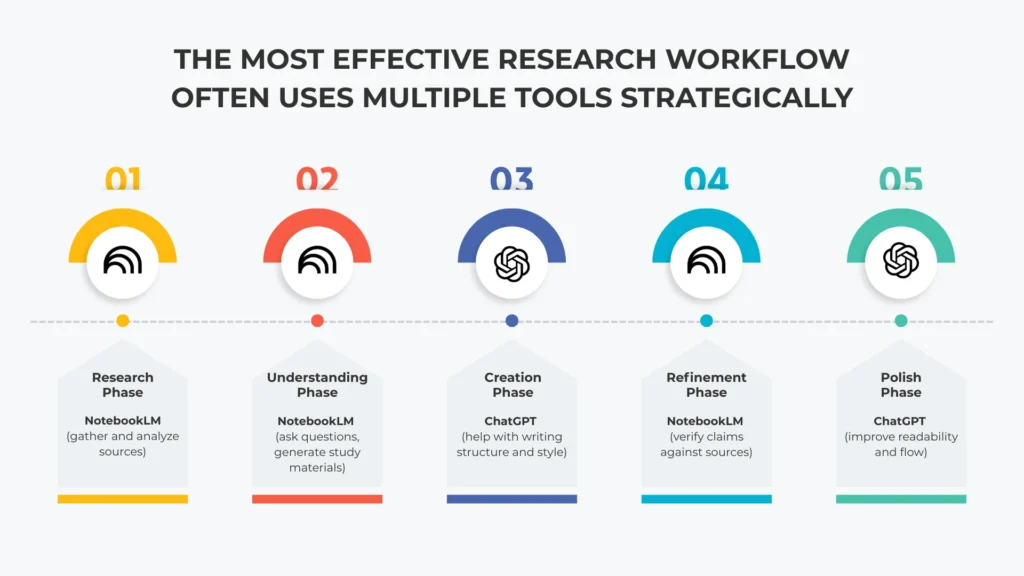
Getting the Most Out of NotebookLM
These strategies significantly improve the quality of insights you extract.
Strategy 1: Curate High-Quality Sources
The Principle: Garbage in, garbage out applies doubly to AI tools.
Source Selection Checklist:
| Criterion | Why It Matters | How to Evaluate |
|---|---|---|
| Relevance | Irrelevant sources dilute focused answers | Does this directly address my research question? |
| Authority | Credible sources lead to trustworthy insights | Is this from a recognized expert or institution? |
| Currency | Outdated information misleads analysis | When was this published? Is it still accurate? |
| Diversity | Multiple perspectives provide balanced understanding | Do I have sources representing different viewpoints? |
| Specificity | Detailed sources enable detailed answers | Does this provide depth or just surface-level info? |
What to Avoid:
- Multiple sources saying essentially the same thing
- Tangentially related content that adds noise
- Low-quality blog posts or unverified information
- Sources that significantly overlap in content
Strategy 2: Master the Art of Questioning
Basic Questions (provide surface-level answers):
"What is this about?"
"Summarize this paper"
Better Questions (provide useful insights):
"What methodology did researchers use and what were its limitations?"
"How does Source A's conclusion differ from Source B's?"
"What evidence supports the claim that [specific statement]?"
Excellent Questions (provide deep understanding):
"What assumptions underlie the main argument in these sources?"
"How has thinking about [topic] evolved across these chronological sources?"
"What practical applications emerge from combining insights in Sources 2, 5, and 7?"
Advanced Questioning Techniques
The Follow-Up Strategy:
Don’t stop at the first answer. NotebookLM maintains conversation context, so drill deeper:
Initial: "What are the main findings?"
Follow-up: "What evidence supports the second finding?"
Deep dive: "How does this evidence compare to industry standards?"
Application: "How could this be applied in [specific context]?"
The Comparison Strategy:
Use source selection for targeted comparisons:
Select Sources 1 & 2: "How do these sources approach [topic] differently?"
Select Sources 3 & 4: "What common ground exists between these perspectives?"
Select All: "Which source provides the strongest evidence?"
Strategy 3: Leverage Source Selection Strategically
Scenario-Based Selection:
When researching controversial topics:
- First pass: Select all sources, ask for overview
- Second pass: Select only academic sources, ask for scholarly consensus
- Third pass: Select media sources, ask how public discourse differs
- Fourth pass: Select contrarian sources, ask for counterarguments
When working with chronological material:
- Select oldest sources: “What was the initial understanding?”
- Select middle sources: “How did thinking evolve?”
- Select newest sources: “What’s the current consensus?”
- Select all: “Trace the development of this idea over time”
Strategy 4: Build a Reusable Research Database
Organization System:
Create separate notebooks for different purposes:
| Notebook Type | What to Include | When to Use |
|---|---|---|
| Topic Deep Dive | All sources on one specific subject | Focused research projects |
| Learning Path | Progressive materials from beginner to advanced | Skill development |
| Competitive Intelligence | Competitor analyses, market reports | Business strategy |
| Personal Knowledge | Articles you found valuable over time | General reference |
| Project Workspace | Everything relevant to current project | Active work |
Maintenance Tips:
- Review and remove outdated sources quarterly
- Add new relevant sources as you discover them
- Use clear, searchable notebook names
- Save important AI responses as notes for quick access
Strategy 6: Verify Critical Information
The Verification Process:
For any information you plan to use formally:
Step 1: Note the citation numbers in NotebookLM’s response
Step 2: Click each citation to view the source passage
Step 3: Read the full context around that passage
Step 4: Verify the AI interpreted the meaning correctly
Step 5: Check if the source itself is citing another original source
Step 6: If crucial, locate and verify the original source
Red Flags to Watch For:
- AI connecting ideas from different sections that weren’t meant to be related
- Paraphrasing that slightly alters the original meaning
- Overconfident statements when source material expresses uncertainty
- Synthesis that jumps to conclusions not explicitly stated in sources
Pricing and Access Options
NotebookLM offers three tiers designed for different use cases and organizational needs.
Detailed Pricing Breakdown
| Feature | Free Version | NotebookLM Plus | NotebookLM Enterprise |
|---|---|---|---|
| Cost | $0 | $19.99/month (part of Google AI Pro) | Custom pricing |
| Access | Personal Google Account | Personal Google Account | Google Cloud account |
| Notebooks per User | 100 | 500 | Custom |
| Sources per Notebook | 50 | 300 | 300 |
| Words per Source | 500,000 | 500,000 | 500,000 |
| Max File Size | 200 MB | 200 MB | 200 MB |
| Daily Queries | 50 per notebook | 500 per notebook | Custom |
| Audio Overviews | 3 per notebook daily | 20 per notebook daily | 20 per notebook daily |
| File Format Support | PDF, Docs, Slides, TXT, MD, Audio, URLs | PDF, Docs, Slides, TXT, MD, Audio, URLs | All Plus formats + DOCX, PPTX, XLSX |
| Sharing Options | Public or email links | Public or email links | Organization-only |
| Data Residency | Not specified | Not specified | US or EU multi-region |
| Compliance | Standard | Standard | VPC-SC compliant |
| Admin Controls | None | None | Full admin interface |
| Support | Community | Standard | Enterprise support |
Final Thoughts: Making NotebookLM Work for You
NotebookLM represents more than just another productivity tool, it’s a new way of engaging with information in an age of overwhelming content.
The difference between someone who uses it casually and someone who uses it masterfully comes down to three things:
1. Intentional Source Curation
Quality matters more than quantity. Five highly relevant sources analyzed deeply beat thirty tangentially related sources skimmed superficially.
2. Strategic Questioning
The insights you extract depend entirely on the questions you ask. Invest time learning to ask better questions, and your results improve exponentially.
3. Critical Engagement
Never accept AI-generated content at face value. Click citations, verify claims, think critically about synthesis, and apply your own judgment.
Hey, you now have everything you need to start using NotebookLM effectively. The tool is free, accessible, and ready to transform how you research, learn, and work with information.
The real question isn’t whether NotebookLM can help you, it’s whether you’ll take the step to integrate it into your workflow and discover its potential firsthand.
Start today. Create that first notebook. Upload a few sources. Ask your first question. You might be surprised at how quickly it becomes indispensable.
Also Read: