
I can imagine that you need data from a website like Competitor prices, job listings, real estate details, product reviews.
The information is sitting right there on screen, but getting it into a spreadsheet means either hours of copying and pasting or hiring a developer to write a script.
Neither option is practical for most businesses.
But Browse AI fixes this.
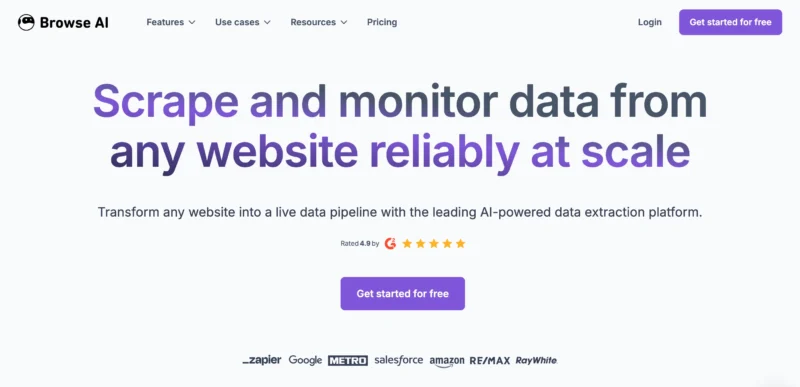
It is a data scraping without coding and automation platform that lets you extract data from virtually any website using a simple point-and-click process.
No Python. No APIs. No technical background required. You click on what you want, the platform learns the pattern, and a robot handles the rest automatically.
Over 500,000 users have already used it to automate 29 million tasks, saving a combined 50 million hours of manual work. That is not a small number.
This guide walks you through exactly what Browse AI does, who it works for, how to set it up from scratch, and whether it is worth paying for.
What Is Browse AI and How Does It Actually Work?
Browse AI is a cloud-based data extraction tool built for people who need website data but do not want to deal with technical complexity.
The core concept is simple, you train a robot by clicking on the data you want, and the robot learns what to collect.
Everything runs on remote servers, not your computer.
That means your robots keep running even when your laptop is off, your browser is closed, or you are asleep. You set the schedule once, and data arrives automatically.
The platform handles the technical headaches that normally make web scraping difficult:
- JavaScript-heavy websites that load content dynamically
- Captchas that block automated tools from proceeding
- Pagination across numbered pages, load-more buttons, and infinite scrolling
- Website layout changes where the robot adapts without needing to be rebuilt from scratch
- Login-protected content where your credentials are used securely to access gated data
Most basic robots take about two minutes to set up. For complex multi-page extractions, the process takes longer but still requires no coding at any step.
Who Gets the Most Value from Browse AI
The platform is genuinely useful across a wide range of roles, but some users benefit more than others.
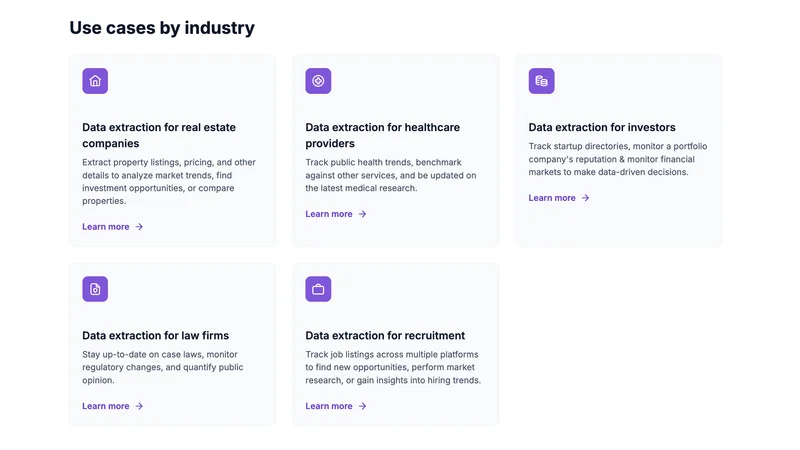
E-commerce store owners use it to monitor competitor pricing on Amazon, eBay, and Google Shopping. Instead of checking manually, they schedule daily price pulls and get notified when something changes.
SEO professionals track keyword rankings across different countries, pull competitor backlinks, and monitor Google search result changes without running manual checks every week.
Digital marketers extract engagement data from TikTok, Reddit, and YouTube to identify trending topics, analyze competitor campaigns, and time their content releases better.
Recruiters and HR teams automate job listing collection from Indeed, LinkedIn, Glassdoor, Monster, and Upwork instead of switching between tabs and copying postings one by one.
Real estate professionals pull property listings from Zillow, Realtor.com, and Redfin, tracking price changes and new inventory across entire markets automatically.
Market researchers and analysts gather real-time industry data, pricing trends, and news updates without manually visiting dozens of sources.
If your work involves regularly checking websites for updated information, Browse AI will save you a significant amount of time. If you need deep technical automation with form submissions, multi-account management, or complex conditional logic, this tool is not the right fit for those workflows.
Key Features Worth Knowing About
Point-and-Click Robot Training
The core of Browse AI is its training interface. You open a webpage, click on the specific text, price, title, or list you want to collect, and the platform identifies the underlying data pattern. There is no selector writing, no inspecting HTML elements, no command line. Just clicking.
Each robot handles one specific task on one specific website. This keeps your setup organized and makes it easy to troubleshoot if something stops working.
Pre-Built Robot Templates
For common tasks, Browse AI provides ready-made templates you can use immediately. Price monitoring, job listing collection, review extraction, and social media data pulls all have existing templates that work without any training. If your use case matches one, you skip setup entirely and go straight to collecting data.
Scheduled Automation
Once a robot is trained, you set a schedule. Hourly runs for fast-moving data like news or prices. Daily morning runs for e-commerce monitoring before business hours start. Weekly runs for inventory checks or market reports. The schedule runs in the background without any manual triggering.
Multi-Page Deep Scraping
For situations where you need data from individual pages within a list, Browse AI uses a two-robot system. The first robot collects a list of URLs or entries from a main page. The second robot visits each of those URLs and extracts the detailed information. A real estate example: robot one pulls all property listings from a search results page, robot two visits each listing page to extract bedrooms, bathrooms, price history, and agent contact details.
Change Detection and Monitoring
Beyond one-time extraction, Browse AI can monitor pages and alert you when specific content changes. Track a competitor’s pricing page and get notified when a price drops. Watch a product listing and catch when availability status changes. Monitor a job board and flag when new postings appear that match your criteria.
Data Export and Tool Integration
Collected data exports directly to CSV for spreadsheets or JSON for developers. For teams using other tools, Browse AI connects with Google Sheets for live data syncing with duplicate prevention, Zapier for connecting to over 7,000 apps, Airtable for visual project tracking, and REST API for custom database integrations.
How to Set Up Your First Robot: Step-by-Step
Step 1: Create your account Go to Browse AI and sign up for a free account. No credit card is required. Verify your email and log in to the dashboard.
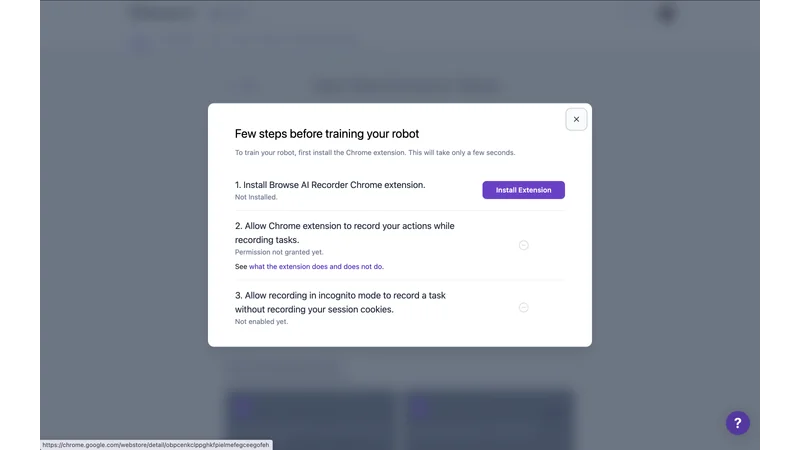
Step 2: Install the Chrome Extension and Open Robot Studio When creating a new robot, select the Use Chrome Extension option and follow the on-screen steps to add it to your Chrome browser. If prompted, adjust your Chrome security settings to allow the extension to function correctly. Training mode activates automatically once the extension is ready.
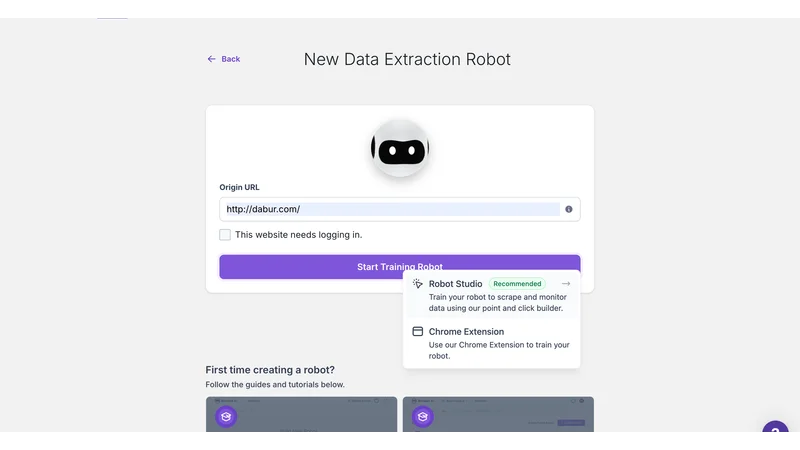
From there, click Start Training Robot and then open the Robot Studio. This is the recommended workspace where all your actual training happens. Inside Robot Studio, you will see the live webpage alongside options to capture text, screenshots, or full-page data.
Click on exactly what you want to collect, assign a label to it, and the robot begins learning the pattern. The Robot Studio keeps the entire process visual and guided, so you are never left guessing what to do next.
Step 3: Choose your task type In the dashboard, create a new robot. Select either Extract Structured Data (pulling information from a page) or Monitor Site Changes (watching a page for updates). For most beginners, start with data extraction.
Step 4: Enter your target URL Paste the website address you want to scrape. Click Start Training Robot to open the robot studio where you will teach the robot what to collect.
Step 5: Click on your data points In the robot studio, click on the specific elements you want to collect. A product price, a job title, a review score. Assign a label to each data point so your export is organized. For list-based data like multiple product entries, click on a few examples and the robot identifies the repeating pattern.
Step 6: Save and run a test Finish training and run the robot once manually. Check the results in the Table view to confirm the data matches what you expected. If something is off, go back and refine your selections.
Step 7: Set your schedule and integrations Once the test run looks correct, set up your recurring schedule. Add a Google Sheets integration if you want data delivered automatically to a spreadsheet. Enable email notifications if you want alerts on changes or completion.
Practical tips that save time:
- Start with a simple website before attempting anything complex
- Train one robot at a time rather than building several simultaneously
- Review results after the first automated run to catch any issues early
- Use the default settings when starting out. The platform works well out of the box for most standard pages.
Websites Browse AI Supports
The platform works with an extensive list of websites across every major category.
For business intelligence: LinkedIn, Clutch, Capterra, AngelList, Indie Hackers.
For job and recruitment tracking: Indeed, LinkedIn, Glassdoor, Monster, Upwork, FlexJobs, Fiverr, RemoteOK.
For e-commerce monitoring: Amazon, eBay, AppSumo, Google Shopping, ThemeForest.
For real estate: Zillow, Realtor.com, Redfin.
For social media data: TikTok, YouTube, Reddit, Medium.
For SEO and search: Google Search, Google Trends, Google Scholar, Google Maps.
For travel and hospitality: Booking.com, Hotels.com, Google Travel, Meetup.
For technology and software: Google Workspace Marketplace, Zapier, Chrome Web Store, CoinMarketCap.
Even if a specific website is not on this list, Browse AI can typically be trained to extract data from most publicly accessible web pages. The pre-built templates cover the major platforms, but custom training extends the capability much further.
Browse AI Pricing: What Each Plan Actually Gives You
Browse AI has four plans, including a free tier that requires no payment details to start.
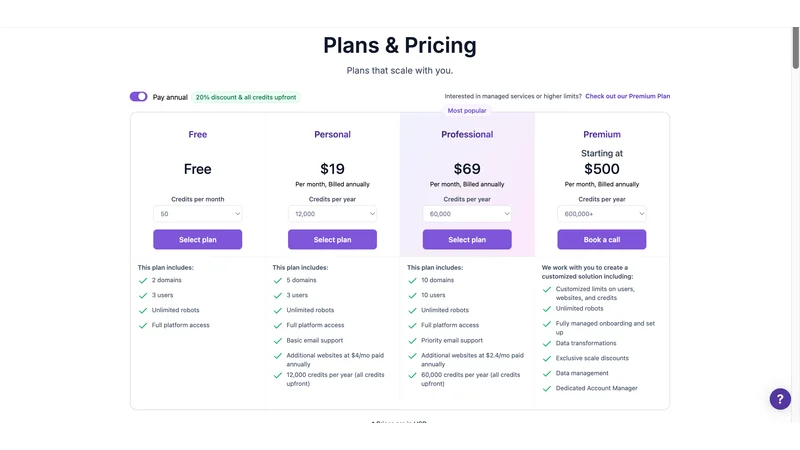
Free Plan: 50 monthly credits, access to all platform features, up to 3 users, 2 domains, unlimited robots. Sufficient for testing the platform and running occasional small extractions.
Personal Plan at $19 per month (billed annually): 12,000 yearly credits, unlimited robots, 3 users, 5 domains, basic email support. Credits can be doubled at $38 per month. Right for individuals and small teams running regular automated tasks.
Professional Plan at $69 per month (billed annually): 60,000 yearly credits, unlimited robots, 10 users, 10 domains, priority email support. This is the most popular plan and the right choice for businesses with consistent data needs across multiple projects.
Premium Plan starting at $500 per month (billed annually): 600,000+ yearly credits, unlimited robots, customized user and domain limits, data transformations, dedicated account manager support. Built for enterprises and agencies with large-scale scraping requirements.
All paid plans include workflows, integrations, and full platform access. The practical recommendation is to start with the free plan, run a few test robots, confirm the tool fits your workflow, then choose the plan that matches your volume.
Honest Pros and Cons
What works well:
No coding knowledge needed at any stage. Robots are quick to train once you understand the pattern. Cloud execution keeps everything running without relying on your machine. Pre-built templates for common tasks remove setup time entirely. The change detection feature is genuinely useful for price and content monitoring. Integration with Google Sheets and Zapier makes data delivery smooth and automated.
What has limitations:
Complex websites with heavy JavaScript or aggressive anti-bot measures can be harder to scrape reliably. The free plan credits are limited and run out quickly if you are running frequent tests. If a website significantly redesigns its layout, robots may need to be retrained. The platform is not suited for workflows requiring form filling, multi-account interactions, or conditional logic beyond simple extraction.
Is Browse AI the Right Tool for Your Situation?
If your work involves regularly collecting visible data from websites and you want to stop doing it manually, Browse AI is one of the most accessible solutions available.
The point-and-click setup genuinely removes the technical barrier that makes most scraping tools unusable for non-developers.
It works particularly well for steady, repeatable tasks: daily price checks, weekly listing pulls, recurring competitor monitoring, regular content aggregation.
These are the exact scenarios where manual work adds up to hours every week.
Where it falls short is advanced automation. If your data collection requires logging into multiple accounts, navigating complex multi-step flows, or working around sophisticated bot protection systems, you will eventually hit the platform’s ceiling.
For the majority of small businesses, marketers, researchers, and analysts who just need reliable website data without a developer, Browse AI handles the job cleanly and consistently.
Start with the free plan. Build your first robot on a simple page.
See how quickly the data arrives and how little effort the setup actually takes. That first test run usually answers the question of whether it fits your workflow better than any written review can.
Also Read:
- 10 Best AI-Powered Email Management Tools for SMBs (2026)
- Marblism AI Review 2026: Honest Pros, Cons & Pricing
- 10 Best Free AI Tools for Small Business Social Media Management in 2026
- How to Use Google Omni for AI Video Generation
- Google Mixboard: 15 Ways AI Generates Visual Concepts Fast
- Pomelli by Google: 3 Steps to On-Brand Marketing Content
- What is NotebookLM? Complete Guide to Google’s Best AI Tool
- Google Opal Review: Is This AI No-Code App Builder Actually Worth Your Time?